Flow definitions
This page should serve as a guide to help you understand what flow definitions are and how you can configure them in the Harmoney application.
What is a flow definition?
If the word “flow” doesn’t ring any bells, we recommend starting by reading through Concept: Information Exchange.
A flow definition defines the sequence of steps that the counterparty of an information exchange needs to complete to capture all the required data for a client outreach. These steps are grouped in responsibilities that represent a part of the flow aimed at gathering data about a specific subject or topic. Every group/responsibility contains a set of “flow steps”. These flow steps define a specific part of information about the subject.
For example, the responsibility “client” is meant for gathering data about the client of the dossier and it may contain a flow step asking about the bank accounts of the client..
Responsibilities
As mentioned earlier, responsibilities represent a part of the flow aimed at gathering data about a specific subject or topic.
- DOSSIER
- Used for gathering data about the dossier
- IDENTITY
- Used for gathering data about the counterparty (only if the counterparty is of type individual)
- CLIENT
- Used for gathering data about the client
- In case the counterparty is also the client of the dossier, flow steps from the client responsibility won't be asked if they have a similar flow step available under the identity responsibility!
- UBO
- Used for managing the UBOs of the client (if applicable)
- ASSOCIATED_PARTY
- Used for gathering data about the associated parties of the dossier and client. At this moment, the following associated party types are supported:
- Dossier related parties
- Client related parties
- Client owners (UBOs)
- With the association scope
ALL, also the related parties and owners of those parties, at any depth. See Capturing multi-level structures. - ℹ️ This responsibility is not displayed in the responsibility matrix (module
INVESTOR_FLOW), but allows the system to create separate data flow steps for associated parties.
- Used for gathering data about the associated parties of the dossier and client. At this moment, the following associated party types are supported:
- FINANCIAL_SITUATION
- Used for gathering data about the financial situation of the client.
- KNOWLEDGE
- Used for gathering various data. Usually contains questionnaires used to calculate an investment profile.
- GOALS
- Similar to knowledge. Used for gathering various data. Usually contains questionnaires used to calculate an investment profile.
- SIGNATORIES
- Used to define who should sign the information exchange.
- SIGNATURE
- Defines how the counterparty should sign the data that was provided in previous responsibilities.
- Should contain the
GENERATEflow step first. - Should contain either the
CONFIRMorSIGNflow step last.
Related flow steps: Overview of available flow steps per responsibility
Responsibility cardinality
The responsibility cardinality is only applicable when information exchanges are enabled through module INVESTOR_FLOW.
The cardinality of the responsibility indicates the relation between the responsibility and the counterparties of the dossier. These cardinalities come into play in the responsibility matrix of a dossier (the “dossier responsibles” card)
List of available responsibility cardinalities:
OPTIONAL_SINGLE: The responsibility is optional and can only be assigned to a single counterparty of the dossier.OPTIONAL_EVERYONE: The responsibility is optional and can be assigned to multiple counterparties of the dossier.REQUIRED_SINGLE: The responsibility is required to be assigned to a single counterparty of the dossier.REQUIRED_EVERYONE: The responsibility is required to be assigned to every counterparty of the dossier.
Example of responsibility cardinalities in responsibility matrix of a dossier
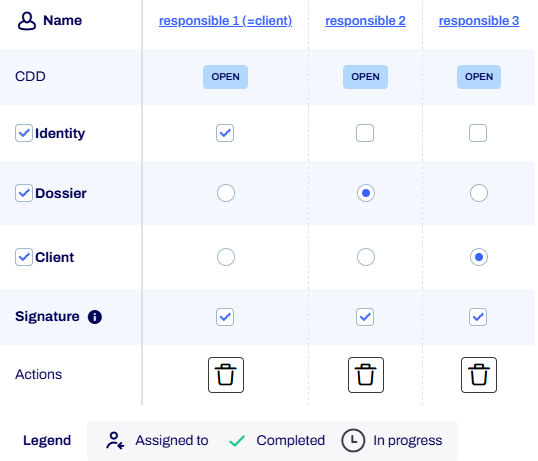
In the image above, you can see an example of a responsibility-matrix for a dossier with three counterparties.
The first column contains the responsibilities that are defined in the flow definition linked to the dossier-definition of this dossier (along with the due diligence status of each responsible).
The subsequent columns each indicate the responsibilities applicable for a responsible.
In this example, the dossier and client responsibilities have cardinality REQUIRED_SINGLE.
So they must be assigned to a single counterparty.
The identity responsibility in the image has cardinality OPTIONAL_EVERYONE, so it can be assigned to any of the responsibles or no responsible at all.
A special case is the signature responsibility.
This responsibility is always required for every counterparty.
Flow Steps
Due to the modularity of the platform, the available flow steps largely correspond to the available modules. For example, if you wish to capture the bank accounts of the client, you'll need a PARTY_BANK_ACCOUNTS flow step.
Since you need the bank accounts of the client, you'll need to configure that flow step in the CLIENT responsibility.
Some flow steps support configuring additional settings. See each flow step detail for more info about what settings are supported.
For some flow steps we support to configure them multiple times. In that case, the flow step can be displayed multiple times during the flow, each using its own configuration. In combination with conditional filters (see below), this allows for a very flexible configuration of the flow where we can show different steps depending on the party's association to the dossier.
It’s possible to define a module for a flow step. In that case, the flow step will only be activated if the module is active on the dossier.
Exclude flow steps from the PDF
By default, all flow steps that contain data are included in the profile PDF that can be generated at the end of the flow.
However, it is possible to exclude specific flow steps from being included in the profile PDF.
To do so, you can configure the excludedFromPdf setting on the flow step settings of a flow step.
Hide flow steps from the side navigation
By default, all flow steps have a corresponding entry in the side navigation of the flow UI.
However, it is possible to hide specific flow steps from the side navigation.
To do so, you can configure the hiddenInNavigation setting on the flow step settings of a flow step.
See BaseFlowStepSettings for the technical model.
Conditional visibility of flow steps
All flow steps support conditional visibility based on the properties of the dossier and the client. A dossier condition can be configured in the settings of each flow step. See BaseFlowStepSettings for more information. The JSON editor in the admin UI supports auto-completion for the available data points that can be used in the conditions.
For some flow steps about data linked to a party, you can also configure conditions based on the associated party type and associated party data points. To be able to differentiate between which associated party types are applicable for an associated party flow step, you can configure AssociatedPartyFlowStepSettings on that flow step. The associated party flow step settings contain a AssociatedPartyDataFilter that defines which associated party types are applicable and supports conditions on party data points, as well as association-specific data points (e.g. relation type).
Capturing multi-level structures
With the ASSOCIATED_PARTY responsibility, the flow can capture a structure of any depth: the related parties of the client, their own related parties
and owners, and so on. Configure the associated party flow steps with the association scope
ALL to reach the parties beyond the client.
{
  "associatedPartyFilter": {
    "associatedPartyTypes": {
      "clientRelatedParties": {},
      "clientOwners": {}
    },
    "associationScope": "ALL"
  }
}
Who gets the flow steps of an associated party. Whoever manages an association also provides the data of the party it introduces. A counterparty therefore only gets the flow steps of an associated party when it has the flow step that manages its association:
| Association | The counterparty needs |
|---|---|
| Owner of a party | The UBO flow step about that party |
| Related party of a party | The PARTY_RELATED_PARTIES flow step about that party |
| Related party of the dossier | The DOSSIER_RELATED_PARTIES flow step |
| Selected signatory | The SIGNATORIES flow step |
| Client, responsible, individual counterparty | No managing flow step |
A party reachable through several associations gets its flow steps when the counterparty manages at least one of them. The flow steps are created level by level, so a whole structure is available after one update of the flow. When a managing flow step no longer applies, the flow steps of the parties it manages are removed in the same update.
Configuration per level. Every level needs the managing flow step of the level above it:
| To capture | Configure |
|---|---|
| The related parties of the client | PARTY_RELATED_PARTIES in the CLIENT responsibility |
| The related parties of those parties, at any depth | PARTY_RELATED_PARTIES in the ASSOCIATED_PARTY responsibility, with clientRelatedParties and the association scope ALL |
| The owners of those parties, at any depth | UBO in the ASSOCIATED_PARTY responsibility, with clientRelatedParties and the association scope ALL |
| The data of all of them | The data flow steps (PARTY_DETAILS, PARTY_DOCUMENTS, ...) in the ASSOCIATED_PARTY responsibility, with the association types to include and the association scope ALL |
Things to keep in mind:
- A flow step without an associated party filter uses the defaults of its responsibility with the association scope
DIRECT: it reaches the related parties of the client, not the parties behind them. - A party needs the managing flow step that matches how it is linked to its parent. A company that is a related party of an indivision needs the
PARTY_RELATED_PARTIESflow step of that indivision, not itsUBOflow step. - When adding a party in the flow (e.g. as owner, related party or signatory), the counterparty can select any party that is already associated to the dossier, at any level.
Order in the flow. Within a responsibility, the associated parties are listed as a tree: each party is followed by the parties it introduced, before
the next party of the same level. Parties of the same level follow the relation metadata field configured in associatedPartyOrder
(see FlowDefinitionSettings), and otherwise their name.
Protecting related parties against deletion in the flow
On the related parties flow steps (DOSSIER_RELATED_PARTIES and PARTY_RELATED_PARTIES) you can configure a deletableWhen condition that is evaluated per related party.
Only the related parties matching the condition can be deleted in the flow, which is typically used to protect the related parties delivered by an integration; deletion outside the flow is unaffected.
Without the setting every related party can be deleted.
What the investor sees for a protected related party depends on the visualization:
with TABLE the delete action is not offered on that row (the other actions stay available), with GROUPED_CARDS the member can only be marked as no longer part of the household instead of being deleted.
The example below lets the investor delete every related party except the ones the integration flagged with deletable: false.
A related party without the deletable metadata key — one the investor added during the flow — also matches, because the condition resolves to an absent value.
{
  "deletableWhen": {
    "notEquals": {
      "fieldPath": "metadata.deletable",
      "value": false
    }
  }
}
See RelatedPartiesFlowStepSettings for the technical model.
Providing custom titles
It is possible to alter the titles of responsibilities & flow steps in the UI and the generated PDF by configuring translation keys on the flow steps.
See ResponsibilityDefinitionSettings & BaseFlowStepSettings for the technical model.
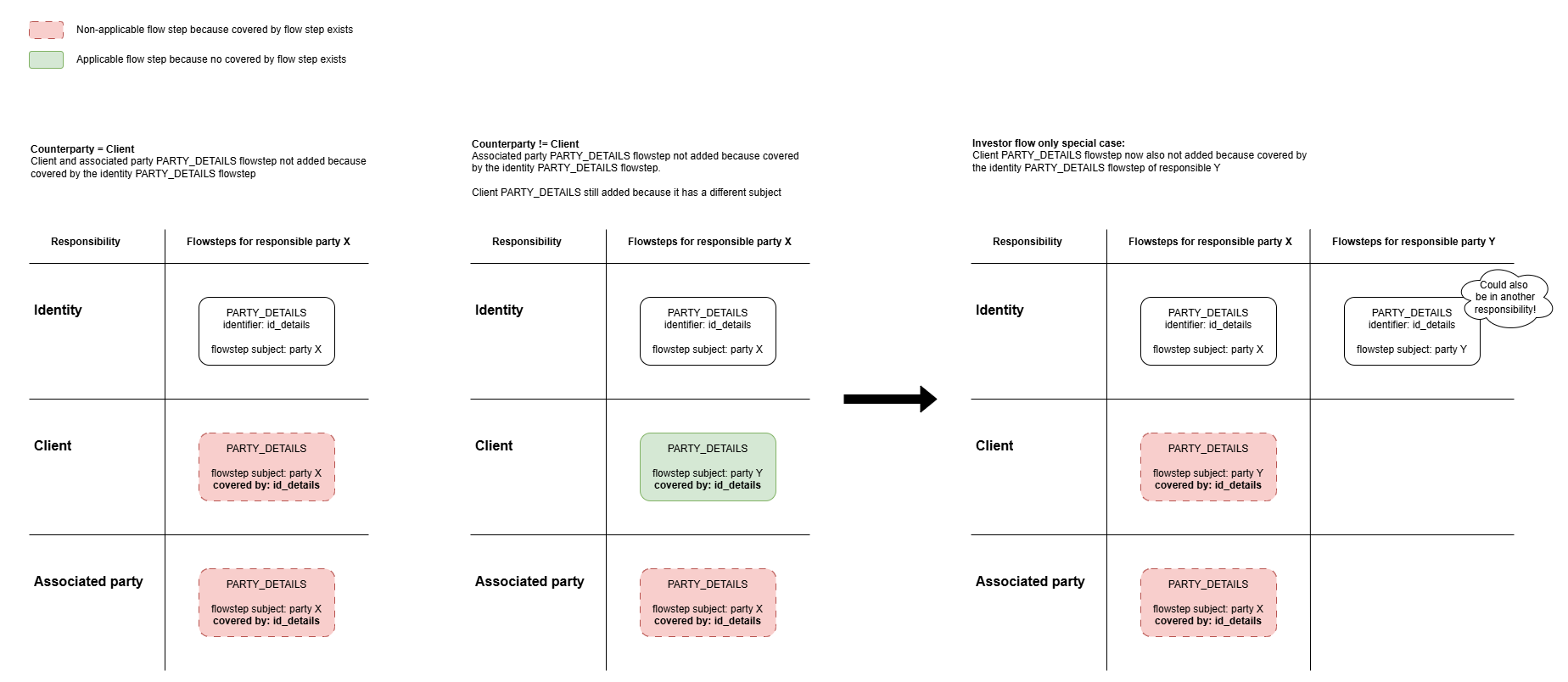
Excluding redundant flow steps (Information Exchange only!)
There may be cases where multiple flow steps from different responsibilities are designed to collect the same data for the same flow step subject.
For example, if a PARTY_DETAILS flow step is configured under both the IDENTITY and CLIENT responsibilities,
a responsible party who is also the client would be asked to provide their party details twice.
To prevent these duplicate flow steps, you can use the coveredBy flow step setting to specify which flow steps are considered equivalent
and which one of those flow steps should take precedence over the other(s).
Preconditions for one flow step A to "cover" another flow step B when coveredBy is configured:
- flow step B has a
coveredBycollection that contains the identifier of flow step A - flow steps A and B have the same flow step subject (
flowStepSubject)
Note that the counterparty of the flow step is not taken into consideration. Meaning that in a scenario with multiple responsibles, the flow step of one responsible can be "covered by" the flow steps of another responsible!
Graphical representation of different scenarios
Concluding on due diligence results inside the flow
The DUE_DILIGENCE_HITS flow step brings the due diligence results that need attention into the information exchange.
It lists every result in a hit state on the dossier and on each of its associated parties on a single page, with each
row labelled with the subject it belongs to, and lets the counterparty record a manual assessment and a comment on a
result.
The conclusion is written to the due diligence result itself, not to a flow answer, so it appears on the due diligence audit trail and triggers the same follow-up actions (risk-based approach recalculation, ...) as an assessment recorded from the back office.
A few things to know when configuring it:
- The step requires the
DUE_DILIGENCEmodule. Declare"module": "DUE_DILIGENCE"on the flow step so it is skipped automatically for dossiers where the module is not active. - Party-scoped parameters are often evaluated at both the dossier and the party level: the dossier result says that some party trips the rule, the party result says which one. Both are listed, so such a parameter produces two rows. That is deliberate — a result that is not listed cannot be concluded on, while it still counts towards the due diligence status and from there the risk-based approach and the dossier status validations.
- A result is only assessable when its due diligence parameter is configured as updatable. Other results are still listed, marked for information with a disabled assess action and left out of the page's progress count, so the counterparty knows the result exists without being asked for a conclusion that is the back office's to record.
- Only counterparties the step is configured for can see the results or conclude on them.
- The step is dossier-scoped: it deliberately takes no associated party filter, because that would split the overview into one page per party. Reading the page completes the step — a result may be left open for the back office.
Overview of available flow steps per responsibility
Flow Step | Responsibility | Description | Settings |
|---|---|---|---|
General steps | |||
| Displays a summary/information page in the flow. See also this page. | ||
|
| Lists every due diligence result in a hit state on the dossier and on its associated parties, on one page, each row labelled with its subject. The counterparty can record a manual assessment and comment on a result, which lands on the due diligence result itself. Requires the | |
Related to dossier data | |||
|
| Form for “general” information about the dossier. | |
| This flow step shows questions from a configured form section | ||
|
| Flow step displaying question sections with subsegments | |
|
| Allows uploading documents related to the dossier. See also this page. | |
|
| Classifies the dossier documents selected by a configurable filter, one by one, by assigning a document type via a click or a hotkey. | |
|
| Allows managing bank accounts related to the dossier. | |
|
| Allows managing the related parties of the dossier. | |
|
| Allows the user to define who needs to sign. | |
Related to a party (client, associated party, counterparty, ...) | |||
|
| Allows retrieving identity information about the party through the use of an identity provider. Precondition: party is an individual | |
|
| Form for “general” information about the party. | |
| This flow step shows questions from a configured form section | ||
|
| This flow step bundles all questions for the configured subsegment ( | |
|
| Form for information about the identity of the party. Precondition: party is an individual | |
|
| Allows uploading documents related to the identity of the party. See also this page. Precondition: party is an individual | |
|
| This flow step bundles all questions for the configured subsegment ( Precondition: party is an individual | |
|
| Allows managing tax information of the party. | |
|
| Allows managing the related parties of the party. | |
|
| Allows uploading documents related to the party. See also this page. | |
|
| Allows general management of the UBOs (owners) of a party. Precondition: the party is not an individual | |
|
| When UBO members are present, their identity data can be captured in their corresponding flow steps defined by the ASSOCIATED_PARTY responsibility.Depending on the configuration, it is also possible to request the data by inviting the UBO to the flow.Depending on the configuration, it is also possible to complete the data in this step directly (which is a legacy feature, covering the owners of the client only) Precondition: client is not an individual | |
|
| Flow step displaying question sections with subsegment Precondition: client is not an individual | |
MiFid related | |||
|
| Flow step displaying question sections with subsegment | |
|
| Flow step displaying question sections with subsegment | |
|
| Flow step displaying question sections with subsegment | |
Related to the signing at the end of the flow | |||
|
| This flowstep is always required. It processes all provided data from the responsible, calculates the test results and investment profile if applicable and generates the PDF to be signed by the counterparty. | |
|
| Allows the user to confirm the data they submitted at the end of the flow. Alternative for the sign flowstep. | |
|
| Allows the user to sign the data they submitted at the end of the flow. | |
|
| Automatically added, you never need to configure this flowstep! | |
|
| Automatically added, you never need to configure this flowstep! | |
Miscellaneous | |||
|
| Automatically added, you never need to configure this flowstep! |
Helpdesk
To be able to provide support when the counterparty is blocked or has issues during the flow, a helpdesk can be configured on the flow definition. When configured and enabled, a "Help" button will be available in the sidebar of the flow. When clicked, a modal will be opened with a configurable title and HTML supported text.
See FlowDefinitionSettings for the technical model.
Split view: source document preview
Flows can show a split view: the flow steps on the left and a preview of the flow's source documents on the right. This allows the counterparty to transcribe data from a source document (e.g. a passport photo or an invoice) without leaving the flow.
The documents are those of the responsibility the active flow step belongs to. So a party's identity step previews that party's documents, and a dossier step previews the dossier's; a responsibility without document steps shows no panel.
The preview panel pages through the available documents (via the header buttons or the arrow keys) and remembers the divider position per user. An image can be zoomed, rotated and panned through the panel header; a PDF is shown in the embedded PDF viewer with its own toolbar (zoom, page navigation, download). Clicking the file name of a previewable document on a document tile "pins" that document into the panel (right-clicking the file name opens it in a new tab instead).
The panel is only shown when all of the following conditions hold; otherwise the flow renders full-width:
- The split view is enabled on the flow definition.
- The counterparty's type matches the (optional) counterparty type restriction.
- The counterparty's flow contains a document step:
DOSSIER_DOCUMENTS,DOSSIER_DOCUMENTS_CLASSIFICATION,PARTY_DOCUMENTS,PARTY_IDENTITY_DOCUMENTSorUBO_IDENTITY. This covers two setup requirements at once — the flow step must be configured on the flow definition and the responsibility must be granted to the counterparty — because the flow steps are materialized from the responsibility matrix when the flow is created. - The active step's responsibility has the split view enabled.
- The active flow step has the split view enabled.
- The viewport is desktop-sized and the active step's responsibility offers at least one previewable document (after the document type filter).
The preview supports image documents (png, jpg/jpeg, gif, webp, bmp) and PDF documents, on desktop viewports. Each document is fetched through its own flow step, so a counterparty only ever previews documents that flow step already grants them. On the classification and UBO identity steps the panel follows the document being classified or the owner being opened. On the SIGN and CONFIRM steps the preview only opens when it holds no PDF documents: these steps already display the document to sign in a PDF viewer, and only one PDF viewer can be shown at a time.
Configuring the split view
Enable the split view on the flow definition settings, optionally restricted to specific counterparty types (an empty list allows all types):
{
  "splitView": {
    "enabled": true,
    "counterpartyTypes": ["INDIVIDUAL"]
  }
}
The preview can be switched off for all flow steps of a responsibility through the responsibility settings (default: enabled). This is also the only split view configuration for dynamically added flow steps without their own flow step definition (e.g. the signature steps):
{
  "splitView": {
    "enabled": false
  }
}
On each flow step, the preview can be switched off individually and the offered documents can be limited to specific document types. The configured order of the document types also defines the order of the documents in the panel; an empty list offers all previewable documents:
{
  "splitView": {
    "enabled": true,
    "documentTypes": ["PASSPORT", "ID_CARD"]
  }
}
See FlowDefinitionSettings, ResponsibilityDefinitionSettings and BaseFlowStepSettings for the technical model.
Configuring a flow definition
Managing a flow definition
Flow definitions can be managed by users with the administrator role. To manage flow definitions, as admin, navigate to “Libraries” → “Flow definitions”.
Currently, there are no CRUD actions that can be performed in the UI. Instead, we can manage flow definitions by importing and exporting them in JSON format.
Link the flow definition
Flow definitions are configured on dossier definition level and each dossier definition can have one flow definition. This means that client outreaches on a dossier always follow the same structure defined by the configured flow definition.
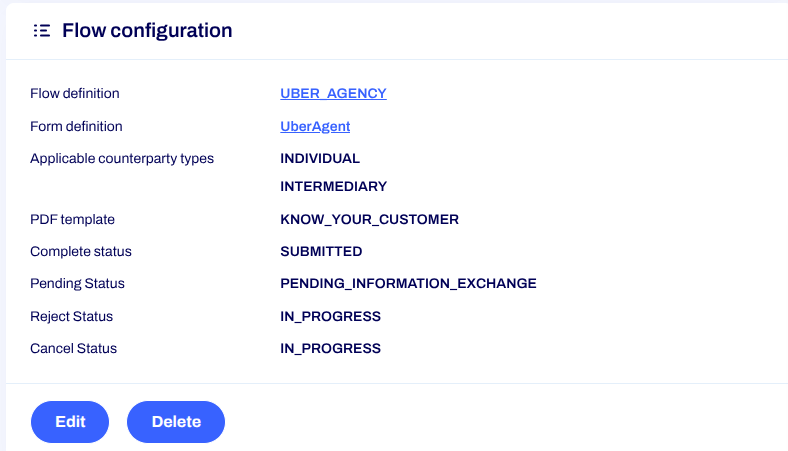
The flow definition is configured as a “flow configuration”. Dossier definitions can have different lifecycles or “state diagrams”. To be able to integrate any flow definition into the dossier lifecycle of a dossier definition, some additional settings are configurable on the flow configuration. These settings ensure that any flow definition is compatible with any dossier definition. Here is an overview of these additional settings and what they do:
- Start statuses: Optional list of statuses that the dossier should be in to be able to create an information exchange.
- Pending status: Status that the dossier will be transitioned into when a client outreach is started.
- Complete status: The target status that the dossier will be transitioned into after the flow is completed. This setting is required, because a dossier transition is always done after a client outreach is completed.
- Reject status: Status that the dossier will be transitioned into when a client outreach is rejected by the counterparty.
- Cancel status: Status that the dossier will be transitioned into when a client outreach is canceled.